Unsubmit student work
Fiona MacNeill | 8 steps | 1 minute
28 June 2026
- If a student accidentally submits the incorrect files, a teacher can return their work to them by using the “Unsubmit” feature. As an added point, Kita allows multiple submissions. So if a student submits an incorrect file, as alternative they can also submit a second replacement file without the teacher’s intervention.
- You can “Unsubmit” a student’s work from the teacher view of their work in the IDE.
You can reach this view from “People” (live teaching), “student progress” (asynchronous checks), and from “marking” (assessments). We show the route from “marking” in this tutorial.
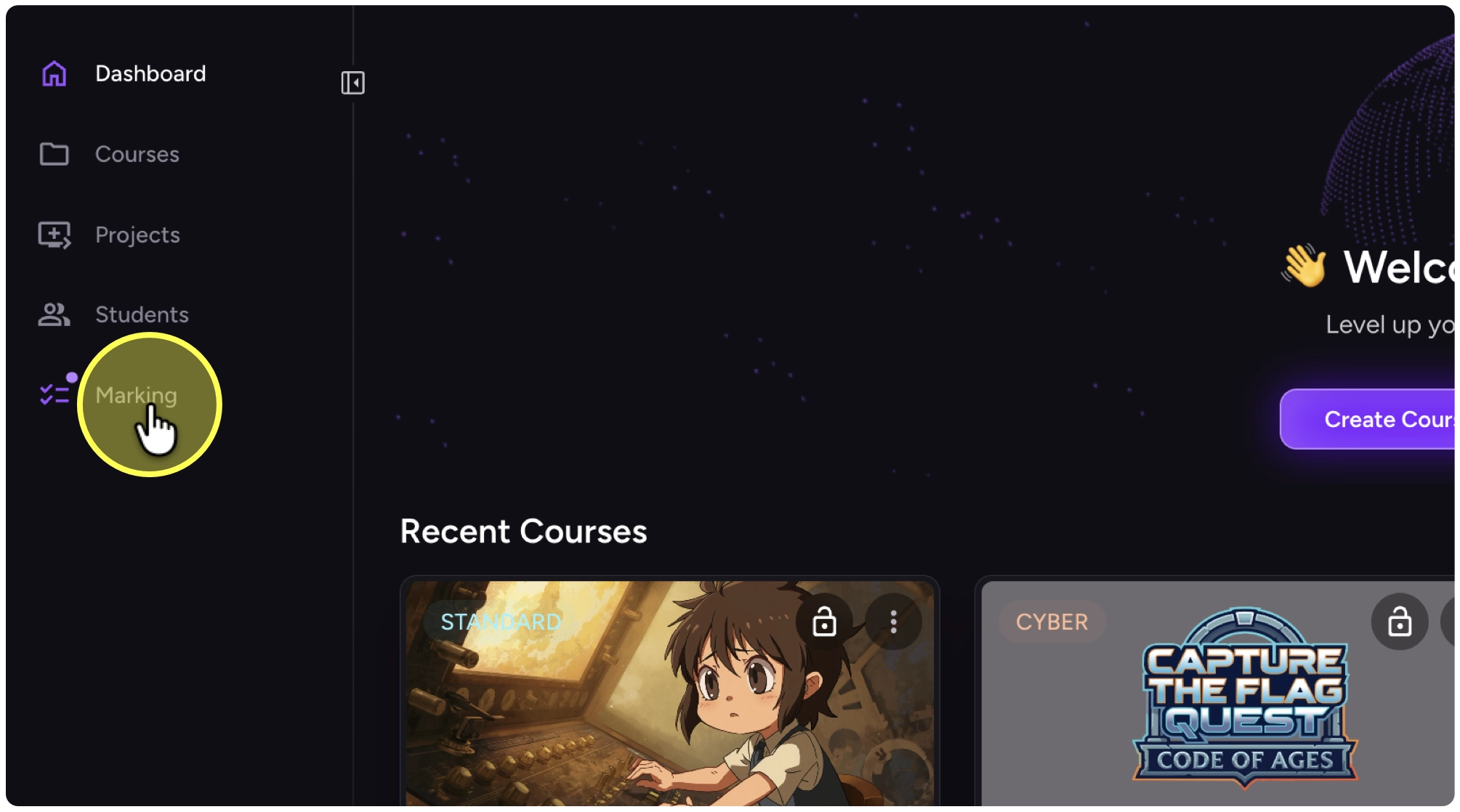
3. Click on “Marking”
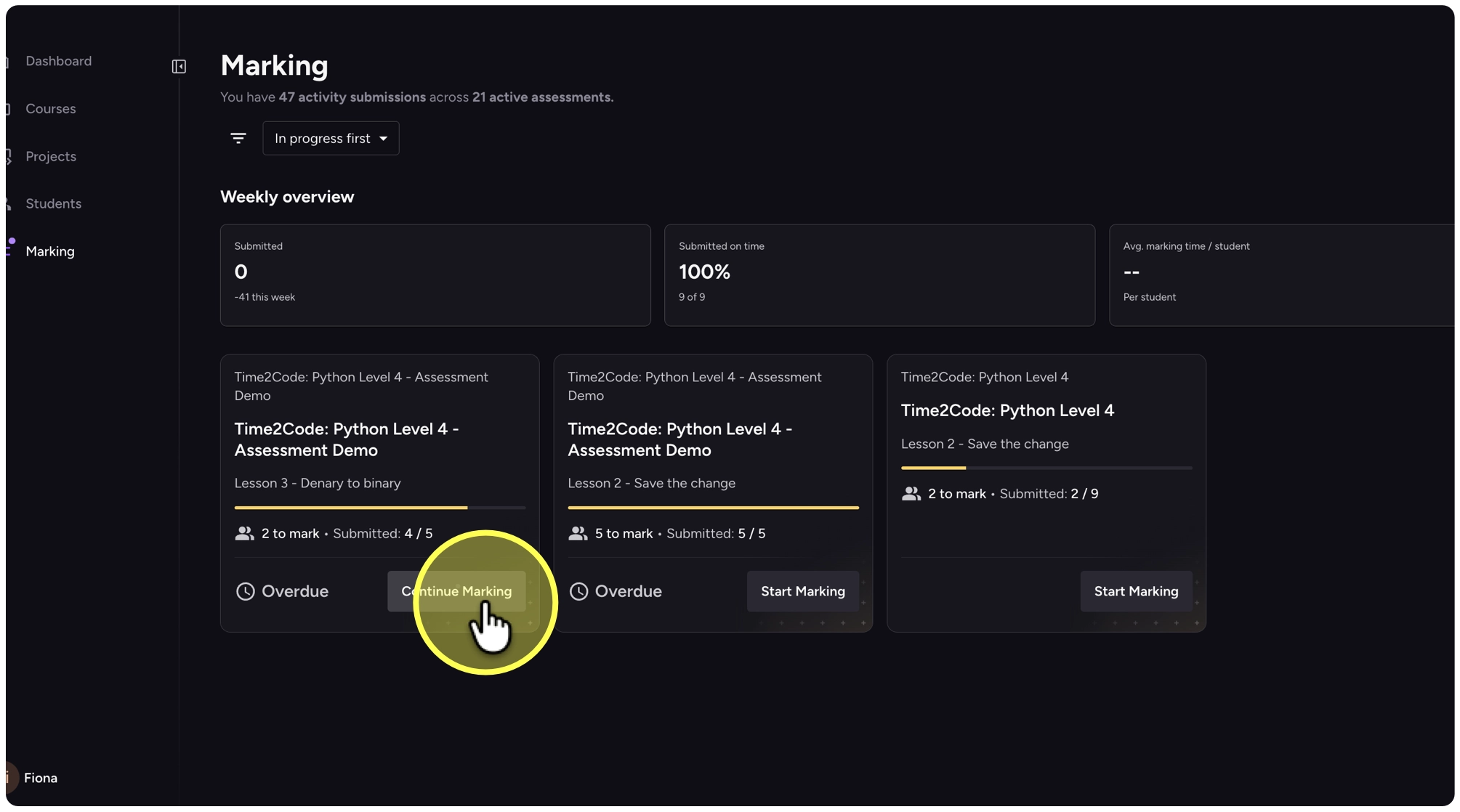
4. Click on “Continue Marking”
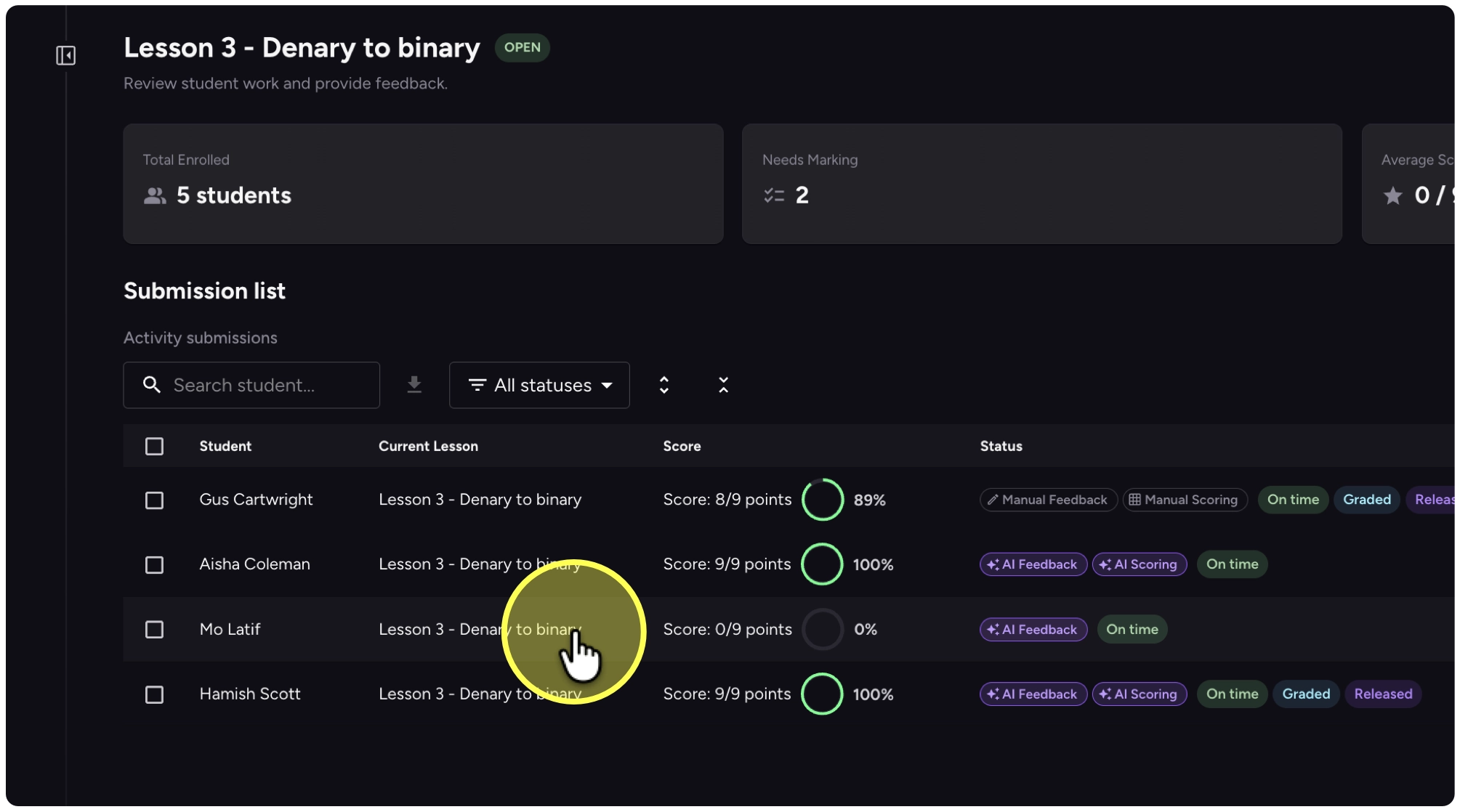
5. Click on row for the student who has submitted the incorrect work.
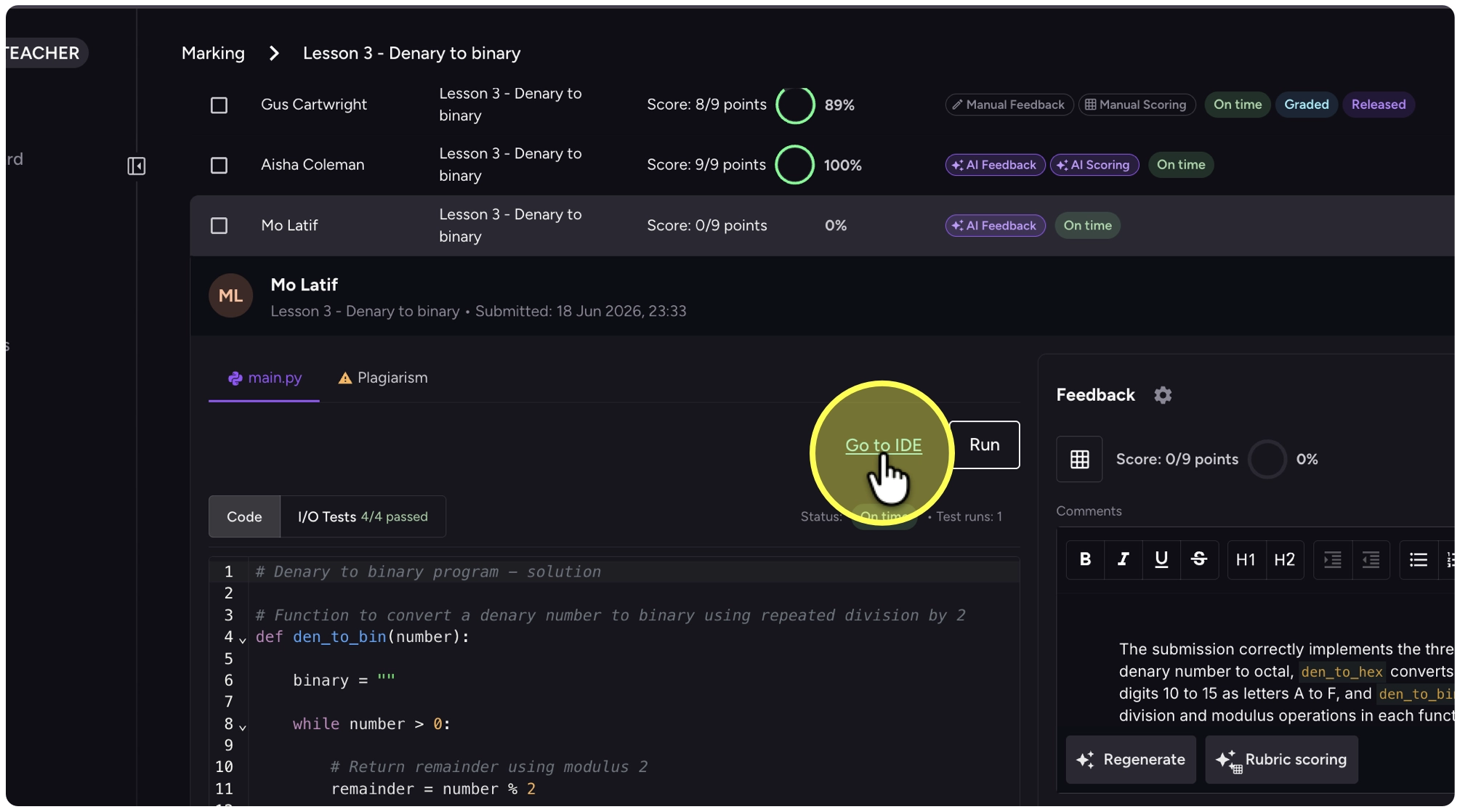
6. From the student’s work, click on “Go to IDE”
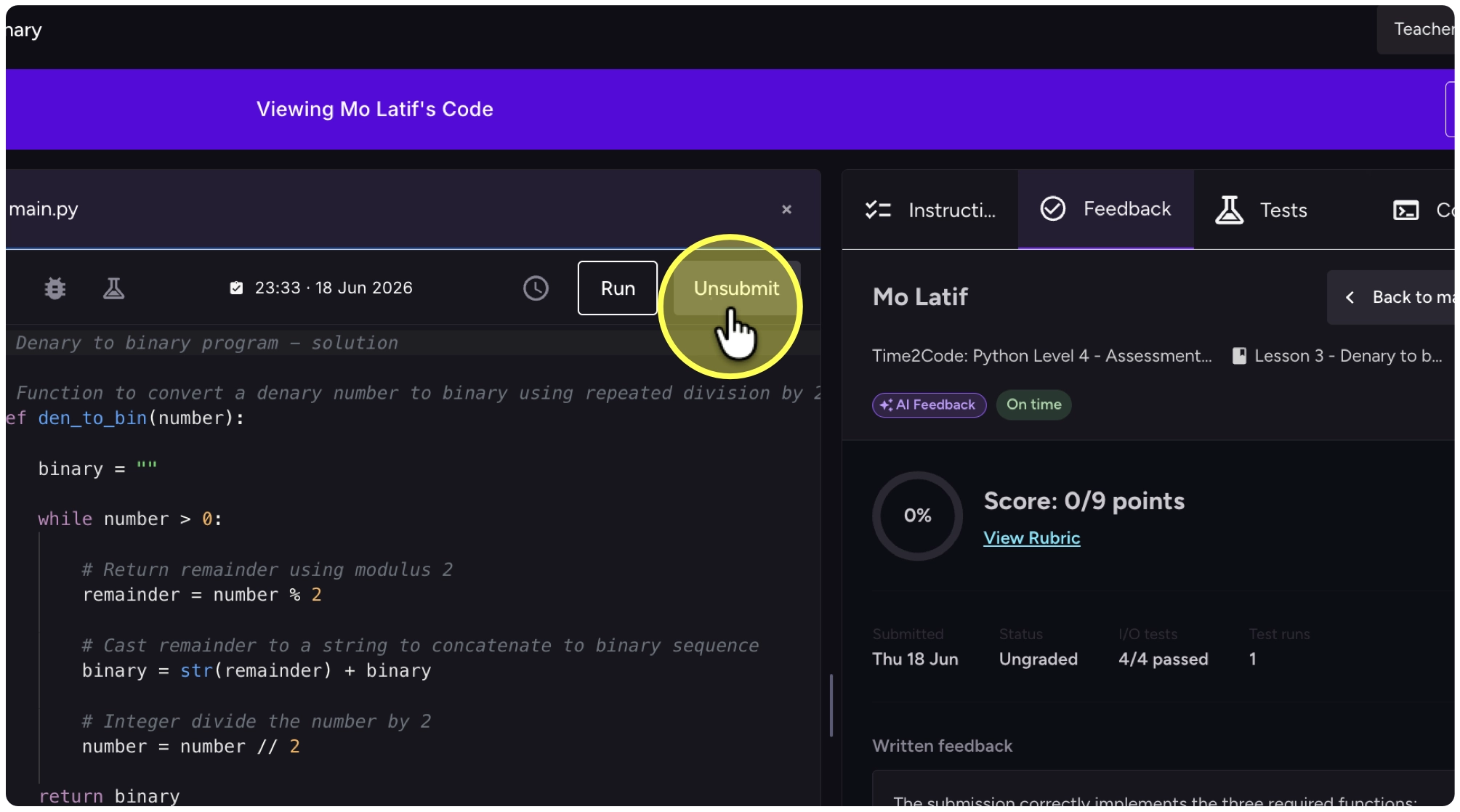
7. In the student’s view, click on “Unsubmit”
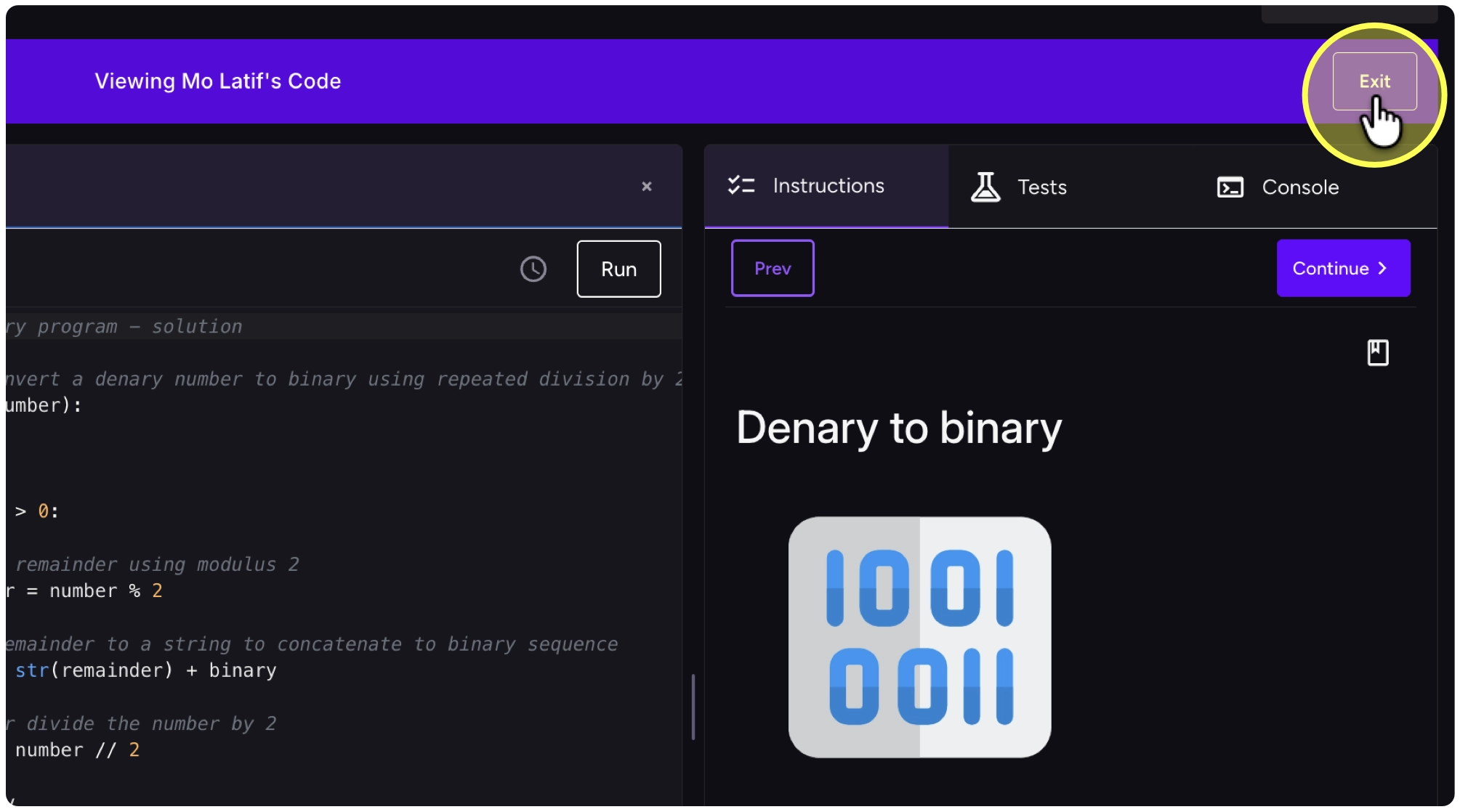
8. Click on “Exit” to leave the student’s code