Update the AI settings for a lesson
Fiona MacNeill | 9 steps | 1 minute
23 June 2026
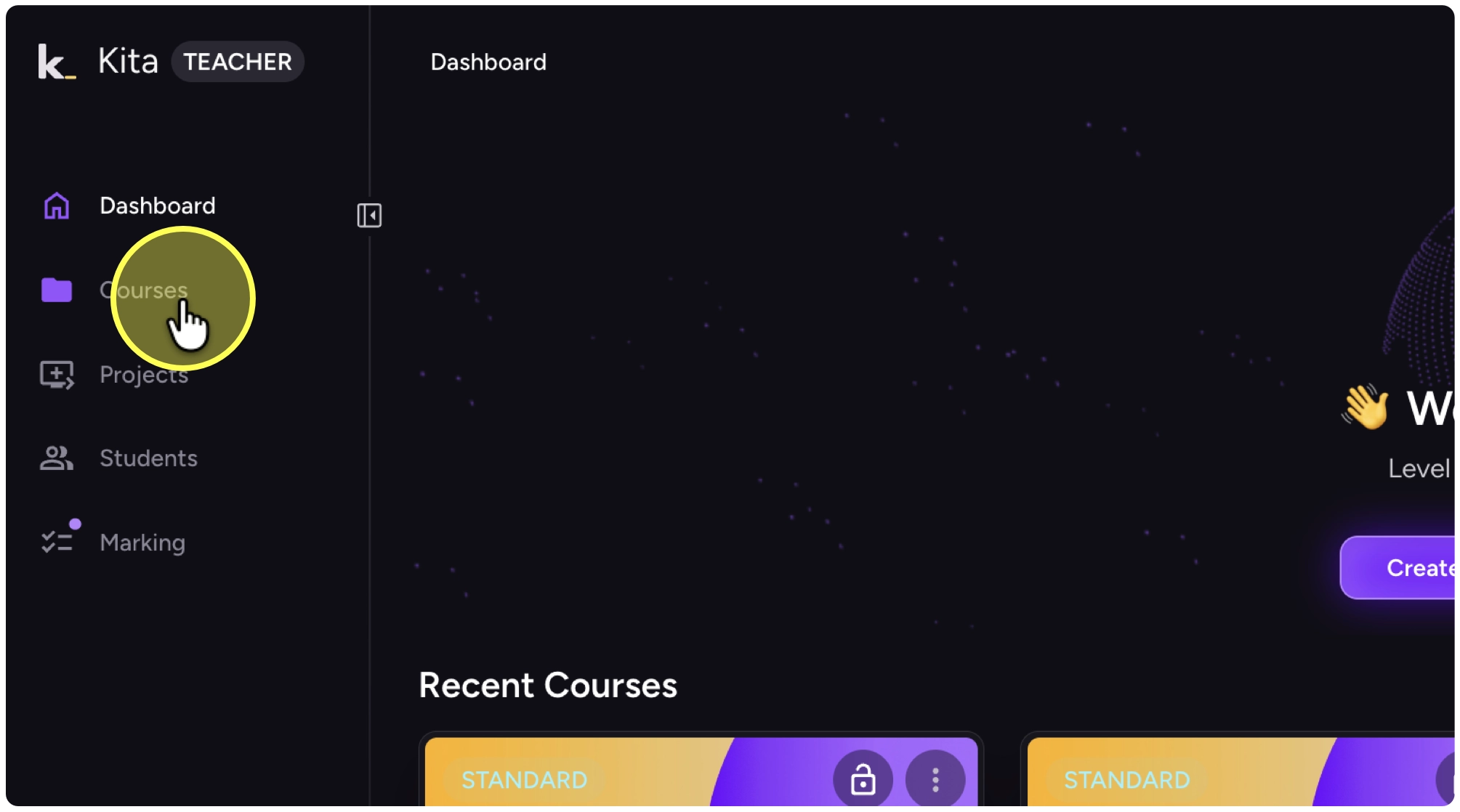
1. Click on “Courses”
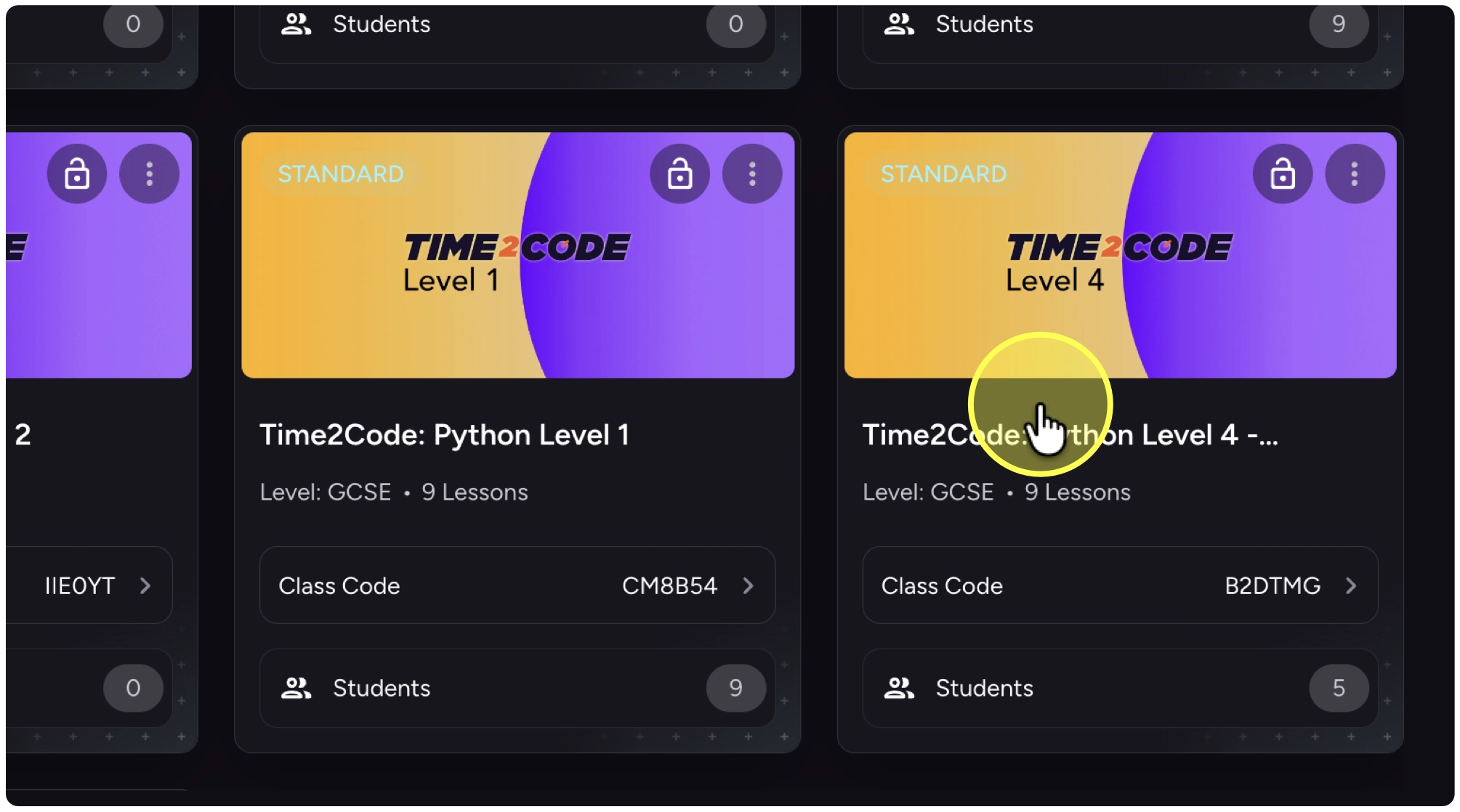
2. Click on your course.
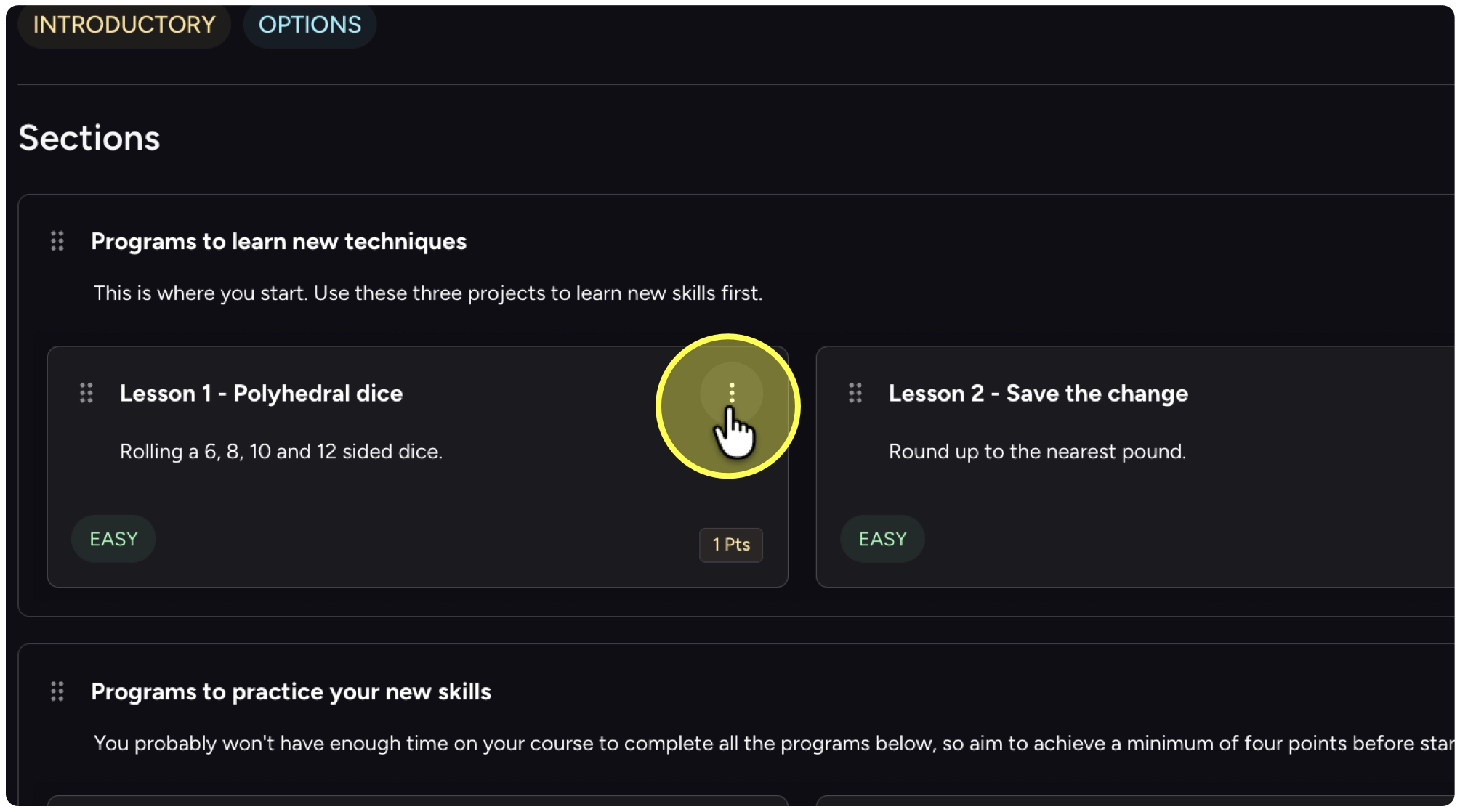
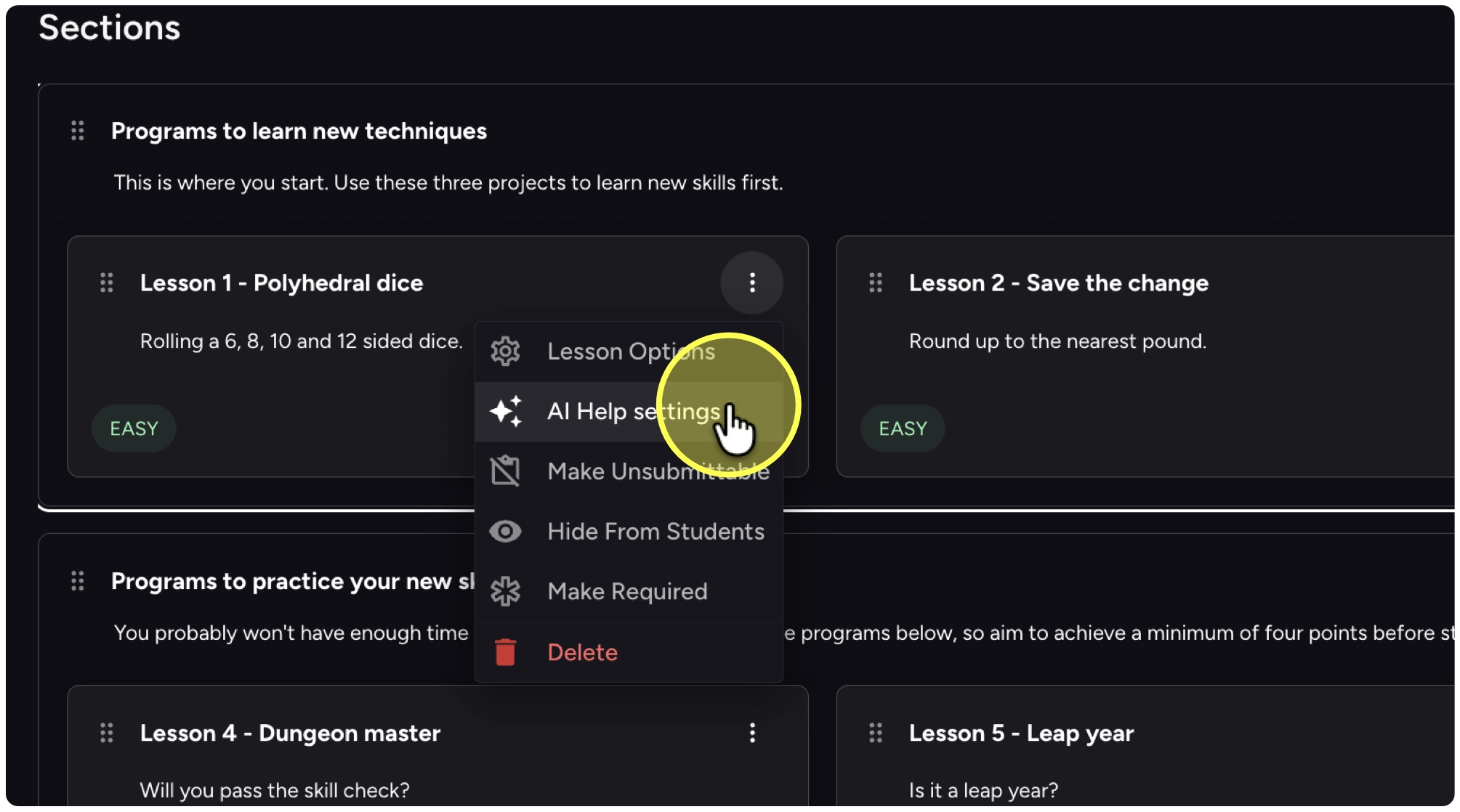
3. Click on the action menu on the top-right of the lesson.
4. Click on “Al Help settings”
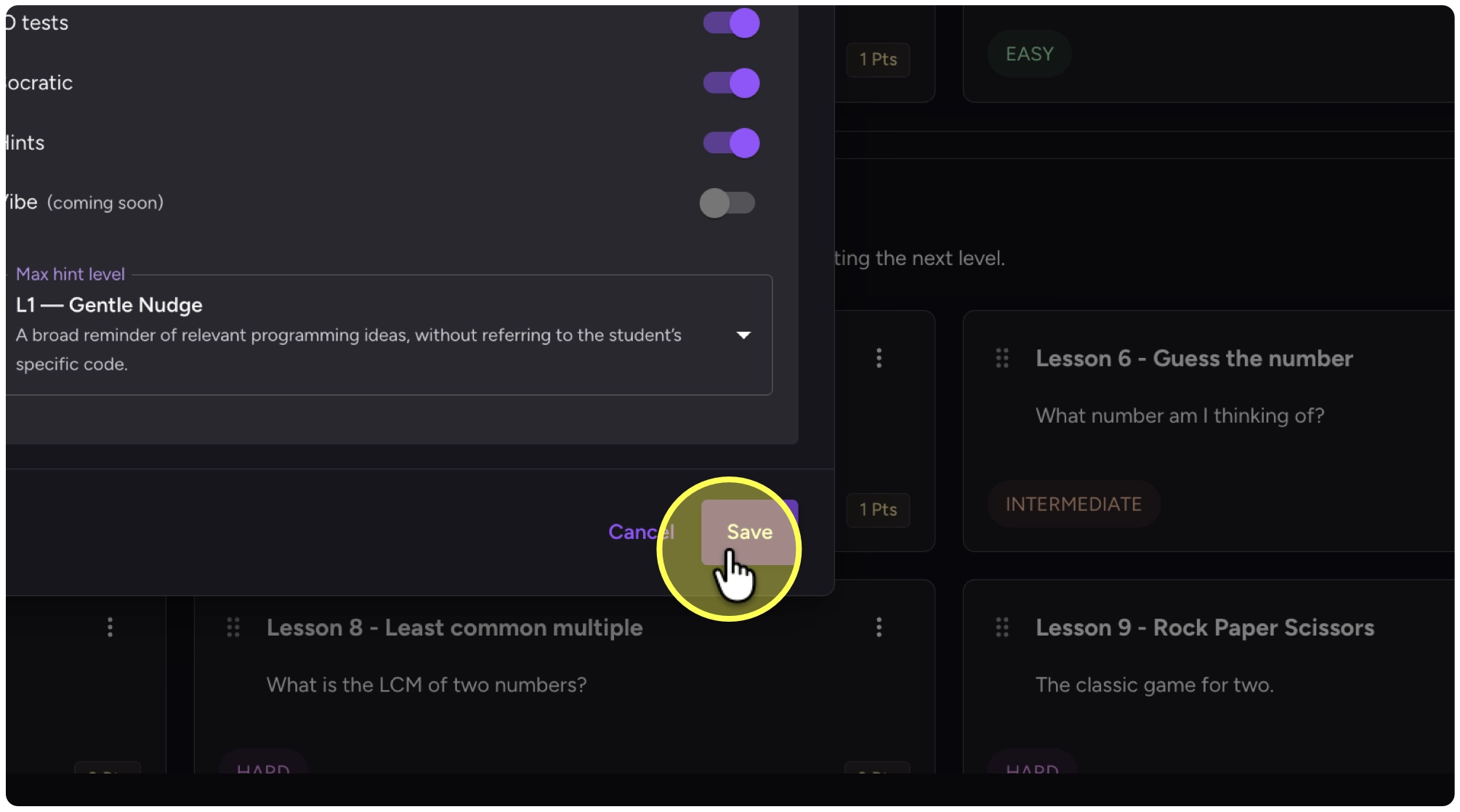
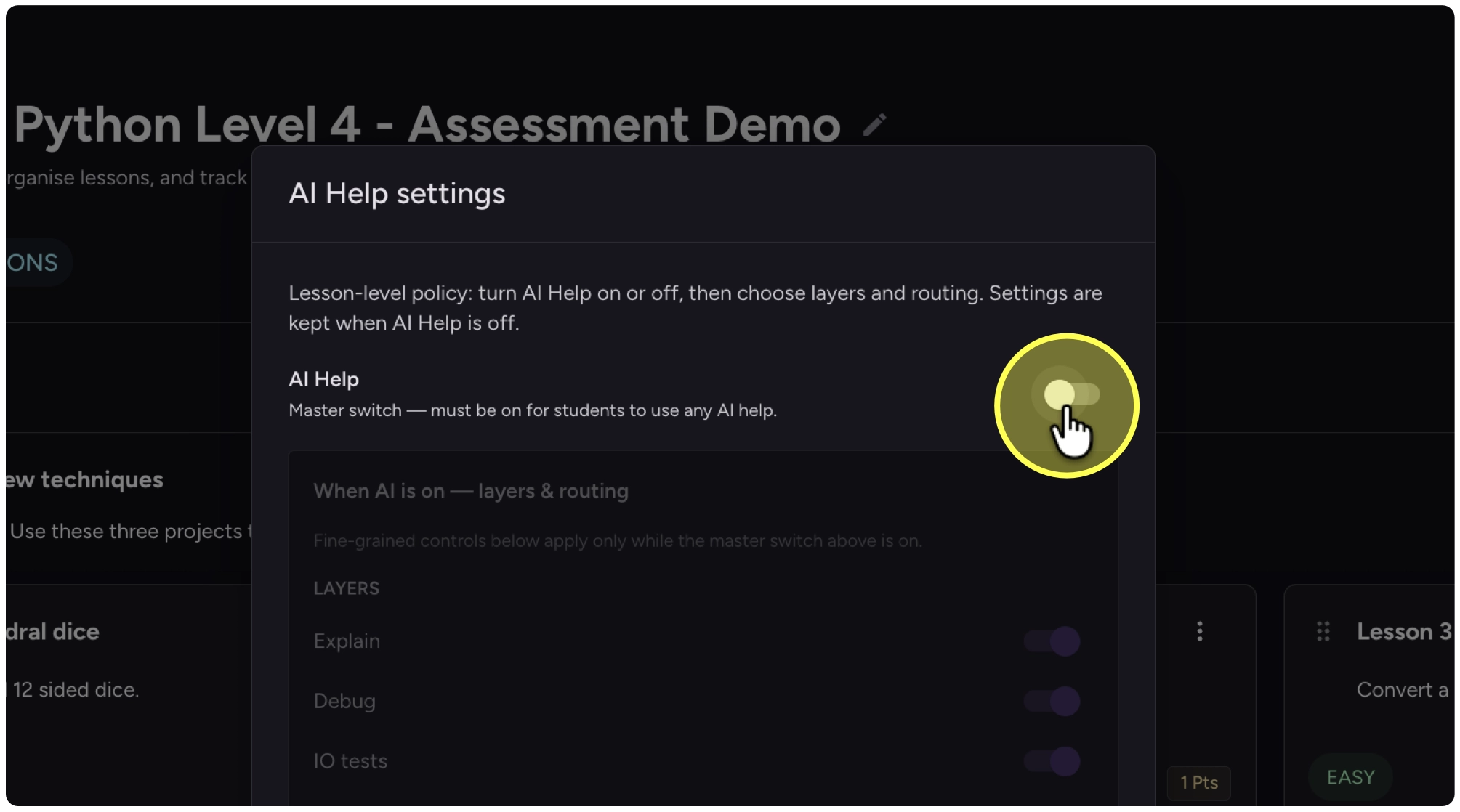
5. Turn on the “AI Help” toggle.
6. Review the AI help settings and adjust - full details are in the next step.
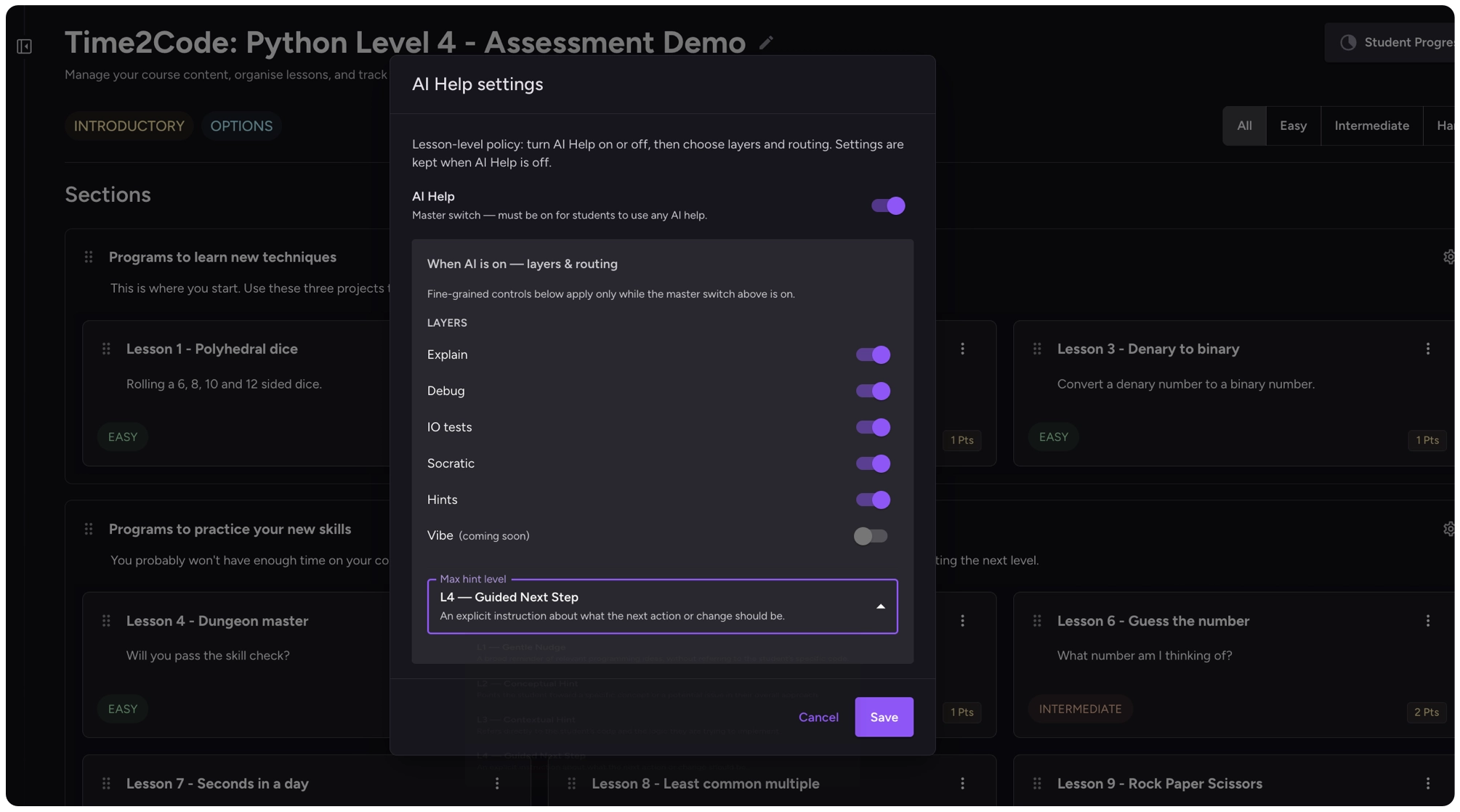
7. Decide if there are any settings that you would like to turn off.
Explain
Explainer mode provides direct, accessible explanations of code. It is designed for moments when a student wants to understand what a specific line or section of code does, without needing to phrase a question in the AI chat.
Debug
When a student’s program produces an error at runtime, the Kita platform displays the standard Python error output and provides an optional AI-powered debugging button.
IO Tests
I/O tests allow teachers to define expected program behaviour by specifying sets of inputs and their expected outputs. These tests are created by the teacher in the lesson editor and run automatically when a student triggers a test run.
Tutor Mode (Socratic Questioning)
The Tutor agent is activated when students ask open-ended questions or express confusion. Rather than providing direct answers, the AI guides the student through structured questions that encourage independent reasoning.
Hints
When a student requests a hint or is identified as being stuck on a task, the system enters Hints mode. The AI provides support through a structured escalation, starting with the gentlest possible nudge and only increasing the level of guidance if the student remains stuck.
| Level | Name | Description | ||
|---|---|---|---|---|
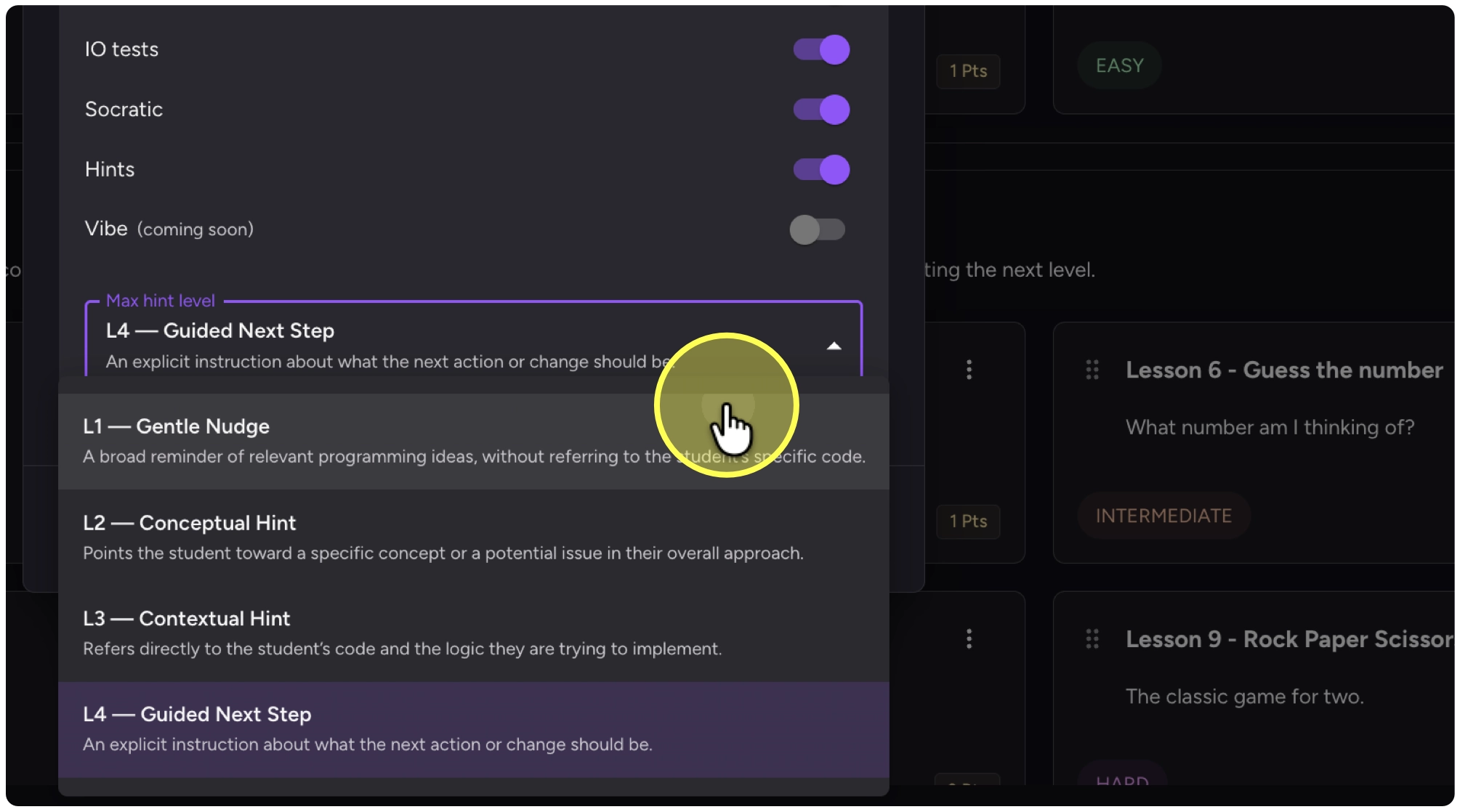
| Level 1 (L1) | Gentle Nudge | A broad reminder of relevant programming ideas, without referring to the student’s specific code. | ||
| Level 2 (L2) | Conceptual Hint | Points the student toward a specific concept or a potential issue in their overall approach. | ||
| Level 3 (L3) | Contextual Hint | Refers directly to the student’s code and the logic they are trying to implement. | ||
| Level 4 (L4) | Guided Next Step | An explicit instruction about what the next action or change should be. | ||
8. Click on the dropdown to update the hint level.
9. Click on “Save”